
Troubleshooting Steps
From time to time, users need to follow certain steps to deal with a corrupted app or data. The steps below are intended to help users like you. It’s important not to skip steps as they are often the difference between this being effective, and not.
- Locating the MacTech Magazine App
- Relaunching the MacTech app on the iPad
- Complete Reinstall of MacTech iPad app
Locating the MacTech Magazine App
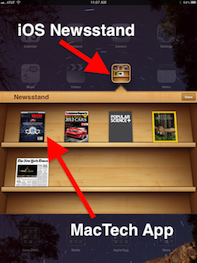
The MacTech Magazine app on iPad does not show up as an app standing on its own. It is, instead, an app that you find on the iOS Newsstand. Don’t know where that is? No problem. Here are the steps to get there.
- Unlock the iPad and scroll to the home screen containing the newsstand application.
- Select the app that looks like the cover of the MacTech Magazine.
Closing the MacTech Magazine app on the iPad
It’s not always obvious on iOS whether apps are running or not. The way you can tell is by seeing if the app is shown in the multi-tasking dock (when you double tap on the home button). Sometimes just deactivating and reactivating the app is enough, but other times, you need to full quit the app and re-launch. These are the steps.
- Unlock the iPad and double-click the “Home” button. A list of apps you’ve opened since the iPad has been turned on appears along the bottom of the screen.
- Touch one of the apps in the list and move your finger to the left to view more apps that are currently running. This is a list of apps running in the background on your iPad.
- Touch and hold the icon of the MacTech Magazine app in this list that you want to completely close.
- Release the app icon when it starts to wiggle and then tap the red “X” button in the upper left corner of the app to completely close the app.
- Press the “Home” button to lock the rest of the icons in place and close the list of recently used applications.
Uninstalling and Reinstalling the MacTech Magazine app on the iPad and iTunes
- Launch “iTunes” on your computer. Your screen will present you with an iTunes navigation sidebar on the left and a main pane on the right.
- Click on “Apps” listed under “Library” toward the top of the sidebar. The main pane will then showcase all of the apps you have downloaded.
- Select the MacTech Magazine app.
- Press “Delete” on your keyboard, or right-click on the MacTech Magazine app and choose “Delete.”
- Select “Remove” when iTunes asks you to confirm your intentions in the first pop-up dialog box.
- Choose “Move to Trash” or “Move to Recycle Bin” in the second pop-up dialog box. The app will be moved accordingly and completely erased from your computer the next time you empty the trash.
- Click on “Apps” listed under “Library” in the sidebar. Browse through your library to confirm that the MacTech Magazine app no longer appears within it.
- Unlock the iPad and scroll to the home screen containing the newsstand application and open Newsstand
- Find the MacTech app.
- Hold your finger down on the MacTech Magazine app icon until they all appear to shake.
- Tap the small “X” in the upper right corner of the application you want to remove. Tap the “Delete” button in the confirmation window that pops up.
- Press the “Home” button again to lock the remaining applications.
- Open the App Store on your iPad.
- Search for the MacTech Magazine iPad app.
- Click on the MacTech Magazine app.
- Hit the Install Button.
- If prompted, enter your apple ID’s password.
- Next time you sync with your computer, the MacTech Magazine app will return to the iTunes library.